

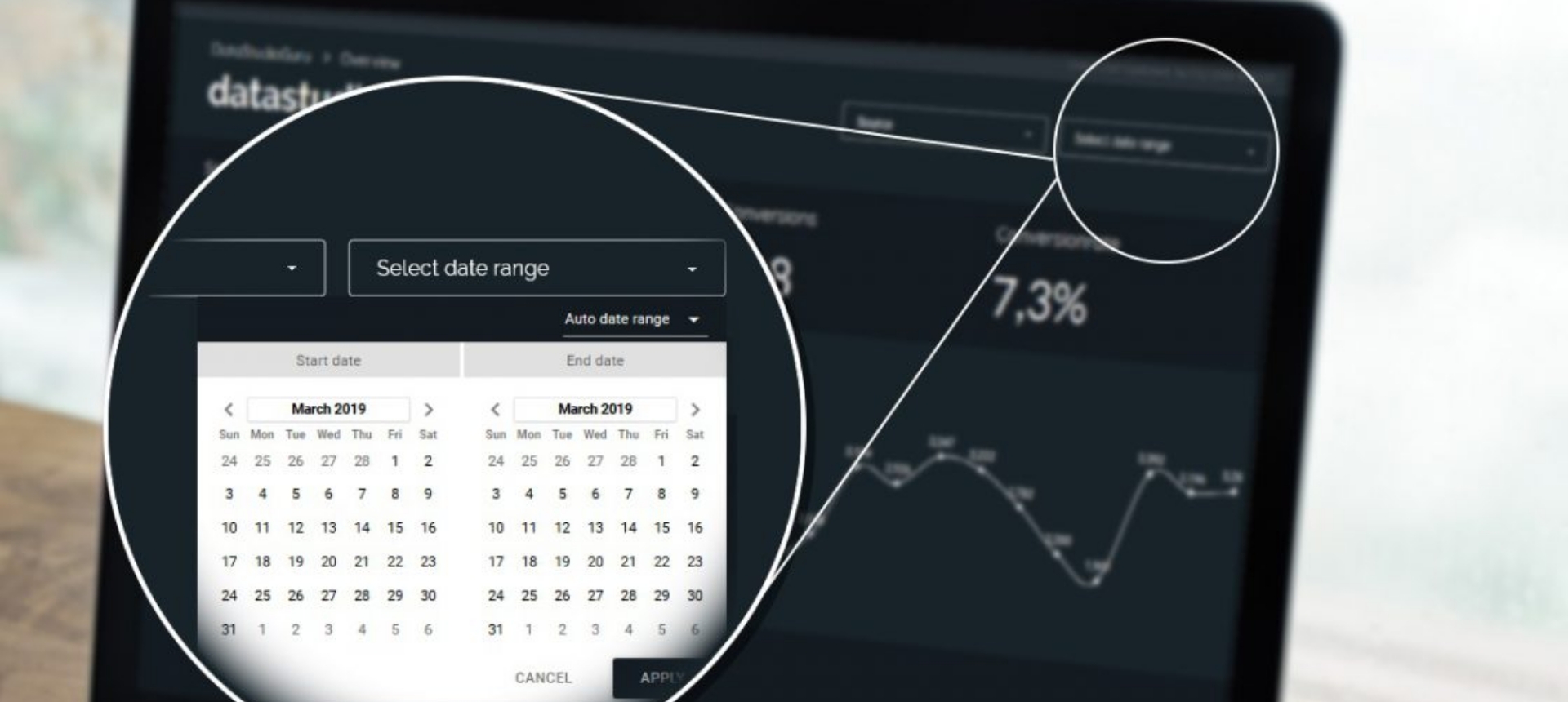
If you're working with a multi-page Data Studio report, you've probably hit this frustration: you set a date range on page one, navigate to page two, and the filter is gone. You have to set it again. And again on page three.
The fix takes about three seconds.
Making a Filter Report-Level
Right-click on any filter or date range control and select "Make report-level" from the context menu. That's it — the filter now applies to every page in the report automatically.
Troubleshooting: Filter Disappears After Converting
A common problem: after making a filter report-level, it seems to vanish. It hasn't disappeared — it's been moved behind another element like a background rectangle or an image.
To bring it back:
- Click the grey area outside the page canvas (this selects the report-level layer)
- In the right sidebar, find the Layout section
- Look for "Report Level Component Position"
- Set it to "Top"
The filter will move to the foreground and appear on top of all other page elements.
That's the whole trick. Report-level controls are one of those small Data Studio features that make a big difference in usability — both for you while building and for whoever is reading the report.