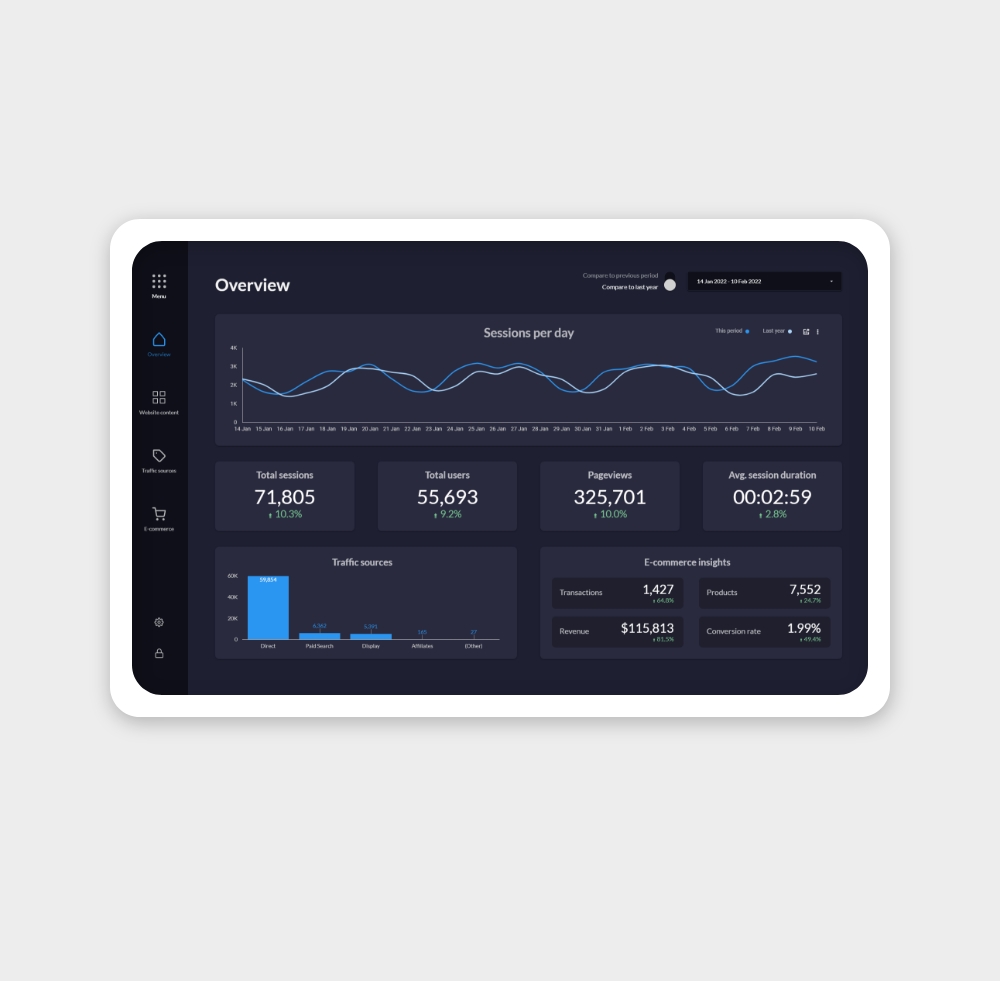
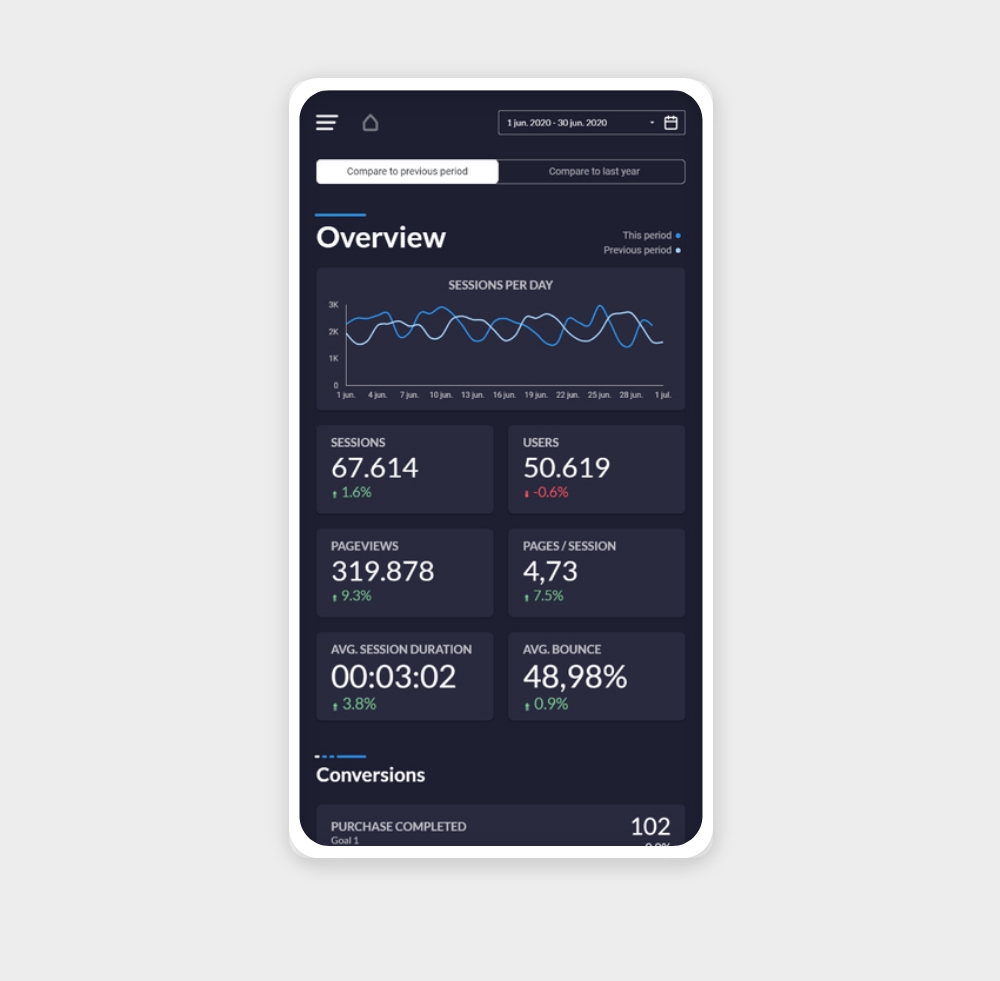
Google Ads data becomes much more useful when it is visualised alongside your other channels. These templates pull your campaign data directly from the Google Ads connector and present it in a format your whole team can understand — no exports, no pivot tables.
Whether you're an in-house marketer, an agency managing client budgets, or an e-commerce business tracking ROAS, these templates give you a live view of your campaign performance — updated automatically and shareable with anyone.
How to connect Google Ads to Data Studio
- Open Data Studio and open or create a report.
- Click Add data in the toolbar.
- Search for Google Ads in the connector gallery and select it.
- Click Authorise and sign in with the Google account that manages your Ads account.
- Select your Customer ID (your Google Ads account number, formatted as XXX-XXX-XXXX) from the dropdown.
- Click Add — Data Studio will connect and expose all campaign-level metrics and dimensions.
Manager accounts: If you use a Google Ads Manager Account (MCC), select the manager account. Data Studio will let you filter down to individual sub-accounts within the report.
Key Google Ads metrics in Data Studio
Impressions — How many times your ads were shown. A baseline volume metric for understanding reach and awareness at the campaign or ad group level.
Clicks — How many times users clicked on your ads. The direct measure of traffic driven by your paid campaigns.
Click-through rate (CTR) — Clicks divided by impressions. Higher CTR indicates that your ad copy and targeting are well-matched. Industry average CTR varies by sector, but 2–5% is typical for search campaigns.
Average CPC — The average cost per click across your campaigns. Tracking this over time helps identify rising competition in your keywords or opportunities to reduce waste.
Cost — Total spend in the selected period. Essential for budget pacing and for calculating derived metrics like cost-per-conversion and ROAS.
Conversions — Actions that you've defined as valuable — purchases, form fills, calls. Requires conversion tracking to be configured in your Google Ads account.
Conversion rate — Conversions divided by clicks. The efficiency measure for your campaigns — how well clicks turn into outcomes.
ROAS (Return on Ad Spend) — Conversion value divided by cost. Available if you track revenue values in your conversion actions. The primary profitability signal for e-commerce advertisers.
Common use cases
Campaign performance reviews — Marketing managers use Google Ads dashboards to compare campaigns by spend, clicks, conversions, and ROAS in a single view. This replaces the manual export-and-pivot workflow and allows real-time monitoring during active campaigns.
Agency client reporting — Agencies connect client Ads accounts to branded Data Studio reports and share a live link. Clients see live performance data with period comparisons without needing access to the Ads interface.
Cross-channel attribution — By combining Google Ads data with GA4 and Search Console data in Data Studio using data blending, you can see how paid and organic channels interact — for example, whether paid clicks cannibalise organic traffic for the same queries.
Frequently asked questions
Why don't my conversion numbers match what I see in Google Ads?
Date attribution differences are the most common cause. Google Ads defaults to conversion date attribution; Data Studio uses click-date attribution by default. Switch both to the same attribution window for a match.
Can I report across multiple Ads accounts in one dashboard?
Yes, but it requires separate data source connections per account. Use data blending in Data Studio to combine them. If you manage many accounts, consider using a Manager Account (MCC) and filtering by account within the report.
Does the connector include Search, Display, Shopping, and YouTube campaign data?
Yes — all campaign types in your Ads account are available. Use the Campaign type dimension to filter by channel.
Can I see keyword-level data?
Yes. Add the Keyword dimension to any chart to break performance down by keyword. For search term data (what users actually typed), use the Search term dimension — note this only shows terms that met Google's privacy threshold.